
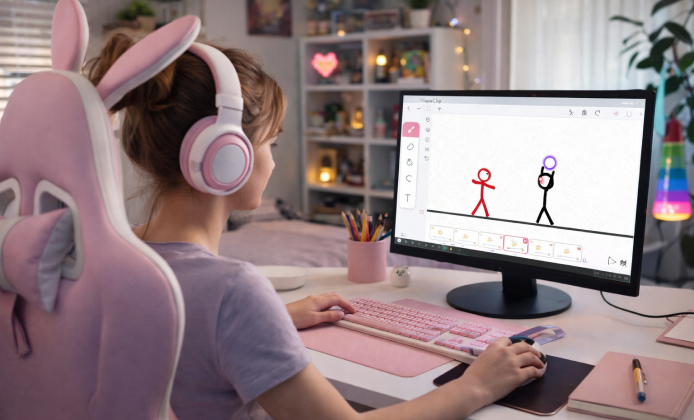
FlipaClip is best known as a mobile-friendly animation app, but many artists want the same frame-by-frame workflow on a larger display with a full keyboard, mouse, and (optionally) a pen tablet. If you’re aiming for smoother drawing, better file organization, and an easier multi-window setup, the process is straightforward once you understand the common PC-friendly approach: using an Android emulator on Windows.
If you prefer a bigger canvas, using FlipaClip on PC can make frame-by-frame work more comfortable for long sessions.
What You’ll Need Before You Start
- A Windows computer with updated graphics drivers and enough RAM to run creative apps alongside an emulator.
- Stable internet for installation and syncing, plus a little free disk space for cache and exported videos.
- Optional: a drawing tablet or touchscreen device for pressure control and more natural strokes.
Before you start, a quick FlipaClip for PC download plan should include checking storage space and choosing a trustworthy source.
Two Practical Ways to Use FlipaClip on Windows
Because the app is designed for Android/iOS, Windows users typically choose one of these routes:
- Android emulator route: Run an Android environment on Windows, then install the app inside it.
- Secondary device route: Animate on a phone/tablet and use Windows for editing, exporting, and file management.
To avoid interruptions, keep your installer ready after a FlipaClip download for PC so updates and add-ons are easy later.
Emulator Setup Tips That Actually Matter
Emulators are the bridge between mobile apps and desktop hardware, and the default settings aren’t always optimized for animation. Focus on these adjustments for a better drawing feel:
- RAM and CPU allocation: Give the emulator enough memory to keep playback responsive while you flip frames.
- Graphics mode: If you see lag, experiment with DirectX/OpenGL options and restart after changes.
- Resolution and DPI: A slightly higher DPI can help UI scaling, while a moderate resolution can improve performance.
- Input settings: Enable pen/tablet support if available, and test palm rejection if you use a touchscreen.
- Many beginners try FlipaClip for free on PC by pairing an Android emulator with a mouse-friendly workspace.
“If your playback feels choppy, reduce onion-skin layers temporarily and preview in shorter segments smooth iteration beats perfect settings every time.”
Download and Install Workflow
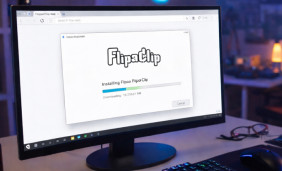
Most users install the emulator first, then add apps via the built-in store or an APK file (when appropriate). Keep the steps tidy to avoid common pitfalls like missing permissions or incomplete sign-ins.
When bandwidth is limited, looking for FlipaClip for PC download for free options can still mean downloading only from official or well-known stores. On some setups, you can download FlipaClip for PC through an emulator’s built-in app marketplace and then pin it to the desktop. After the first launch, a clean FlipaClip install on PC usually involves signing in, granting file permissions, and setting a default project folder.
Recommended Project Settings for Desktop Comfort
Desktop workflows shine when you standardize your project templates. Consider creating a few “starter” presets so every new animation begins with predictable playback and export results.
| Setting | Good Starting Point | Why It Helps |
|---|---|---|
| Frame rate | 12–15 fps | Smooth enough for most styles, while keeping drawing workload realistic. |
| Canvas size | 1080p-friendly | Plays nicely with common export targets and social platforms. |
| Layers | Keep it lean early | Too many layers can slow previews; build complexity after timing feels right. |
| File organization | One folder per project | Faster backups, cleaner exports, and easier collaboration. |
To stay organized, create a checklist as you get FlipaClip for PC and note your preferred canvas size and frame rate.
Windows 11 Notes and Quality-of-Life Tweaks
Windows 11 users often enjoy better window management, improved snapping, and smoother tablet integrations depending on their hardware. If you animate with references open beside your timeline, snapping alone can save time every session. Creators running modern systems often aim for FlipaClip download for PC with Windows 11 because touch, pen, and window snapping can streamline editing.
Troubleshooting: Lag, Crashes, and Input Issues
- Lag while previewing: Lower preview resolution inside the emulator, close background apps, and reduce onion-skin layers.
- Brush feels jittery: Disable “mouse acceleration” in Windows, then test different emulator input modes.
- Can’t save or export: Re-check storage permissions and confirm the export path is accessible from Windows.
- Audio out of sync: Export a short test clip first, then adjust frame rate or audio placement before final render.
- If performance feels sluggish, revisiting your FlipaClip on PC install settings inside the emulator can help by adjusting RAM and graphics mode.
Fast Practice Plan for New Users
- Create a 3–5 second bouncing ball to learn timing and spacing.
- Make a simple walk cycle with stick figures to practice consistency.
- Animate a short lip-sync clip to learn audio alignment and key poses.
- Export a draft, watch it outside the app, then refine only the frames that distract you.
Export, Backup, and Share Without Stress
Once your workflow is stable, treat exports and backups as part of the creative routine. Save iterative versions (v1, v2, v3) so you can roll back after experimenting, and keep a separate folder for final renders to avoid mixing drafts with publish-ready files.
With a careful setup and a few reliable presets, you can animate faster, preview more smoothly, and keep your projects better organized while still enjoying the simple, approachable feel that makes FlipaClip popular in the first place.
 A Practical FlipaClip Install Guide on Windows PC
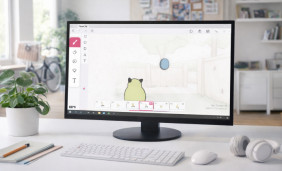 FlipaClip in the Browser Mindset: Practical Ways to Animate
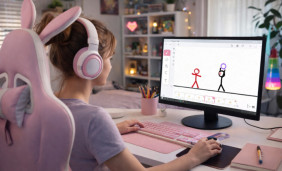 Run FlipaClip on PC: Complete Windows Setup for Animators
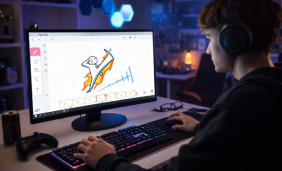 FlipaClip on Tablet Guide: Settings, Workflow, and Drawing Tips
 FlipaClip App Alternatives
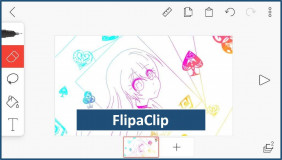 Guide on How to Create a FlipaClip Cartoon