
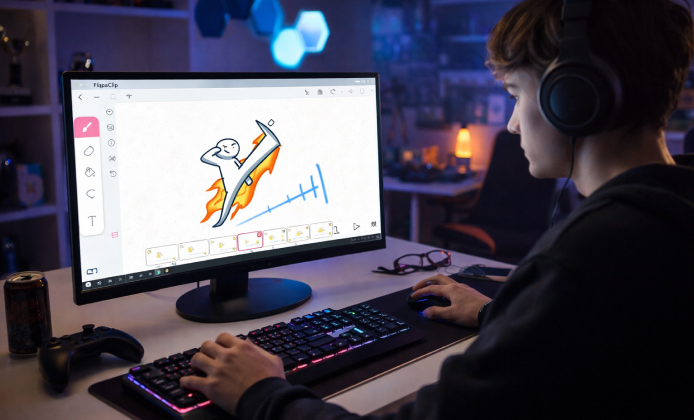
Animating on a tablet can feel surprisingly close to drawing on paper lightweight, portable, and always ready when inspiration hits. If you want a setup that’s friendly for beginners but still flexible for bigger projects, FlipaClip is a strong option for sketching, frame-by-frame work, and quick exports without needing a full desktop workflow.
Why a Tablet Is a Great Place to Animate
Tablets make it easy to switch between rough thumbnails and clean line art, especially if you use a stylus. Many creators prefer the direct “hand-to-screen” feel, because it speeds up gesture drawings and helps you keep timing consistent.
- Natural drawing posture (especially with a stand or keyboard case)
- Quick access to layers, onion-skin, and playback controls
- Simple sharing for collaboration or posting progress clips
Tip: Set a comfortable frame rate early (like 12 or 15 fps) and stick with it until your animation is readable then refine timing with extra frames only where it matters.
Best Settings to Start With
If you’re new to animation, keep your first project small.
| Goal | Canvas Size | Frame Rate | Length |
|---|---|---|---|
| Practice loop | 1280×720 | 12 fps | 2–4 seconds |
| Short scene | 1920×1080 | 15 fps | 5–10 seconds |
| Social post | 1080×1080 | 12–15 fps | 3–6 seconds |
Workflow That Keeps Projects Clean
Before you add color or effects, get the motion working. A clean pipeline prevents “over-detailing” too early, which often slows down the animation and makes edits painful later.
- Storyboard thumbnails and key poses
- Rough pass with big shapes and clear timing
- Clean lines on a separate layer
- Flat colors first, shading second
- Export a test clip and review on another device
Using FlipaClip on Apple Tablets
Many artists pick an iPad because it handles long sessions smoothly and pairs well with a stylus. For readers specifically comparing devices, FlipaClip on iPad is often a comfortable combination for both casual doodles and structured practice routines.
When people search for iPad FlipaClip, they’re usually looking for guidance on stylus settings, canvas sizes, and how to keep lines stable try enabling any available smoothing options and avoid ultra-small brushes until your hand control feels steady.
If you’re curious how the experience feels in daily use, iPad FlipaClip can be especially nice for quick loops because you can preview motion instantly, adjust timing, and export without breaking your creative flow.
Fire Tablet Notes: What to Check Before You Install
Fire tablets can be great budget devices, but app availability can vary depending on the model and region. If you’re exploring FlipaClip for Fire tablet download, start by checking your storage space, OS version, and whether you can access the app store method that supports your device.
When your goal is to download FlipaClip for tablet on a non-standard Android ecosystem, it helps to confirm compatibility first, then keep your projects lightweight until you know playback is smooth on your hardware. For users who want to install FlipaClip on Fire tablet, focus on safe, official sources whenever possible and avoid unknown installers stability matters a lot for animation projects because you don’t want corrupted files or random crashes mid-session.
Troubleshooting Common Tablet Issues
- Laggy playback: Reduce canvas size, hide extra layers, and preview shorter segments.
- Shaky lines: Use a slightly thicker brush, lower zoom, and test smoothing if available.
- Export problems: Try a shorter clip first, then increase resolution once it works.
- Storage filling up: Archive finished projects and export to a safe backup location.
Mini Checklist Before You Start Animating
Use this quick list to make your first session productive instead of fiddly:
- Charge your tablet and stylus (or keep a cable nearby)
- Pick one simple animation idea (bounce, blink, wave)
- Set a frame rate and keep it consistent
- Name layers clearly (Rough, Clean, Color)
- Export a 3-second test clip to confirm settings
With a solid starting setup and a simple workflow, tablet animation becomes less about fighting tools and more about building timing, clarity, and style one frame at a time.
 A Practical FlipaClip Install Guide on Windows PC
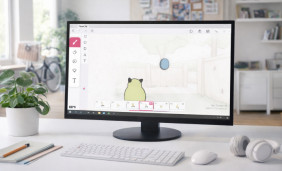 FlipaClip in the Browser Mindset: Practical Ways to Animate
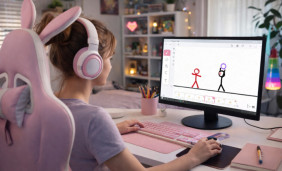 Run FlipaClip on PC: Complete Windows Setup for Animators
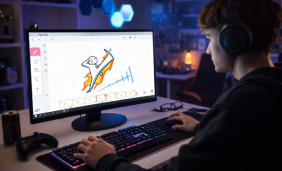 FlipaClip on Tablet Guide: Settings, Workflow, and Drawing Tips
 FlipaClip App Alternatives
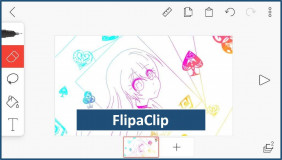 Guide on How to Create a FlipaClip Cartoon