
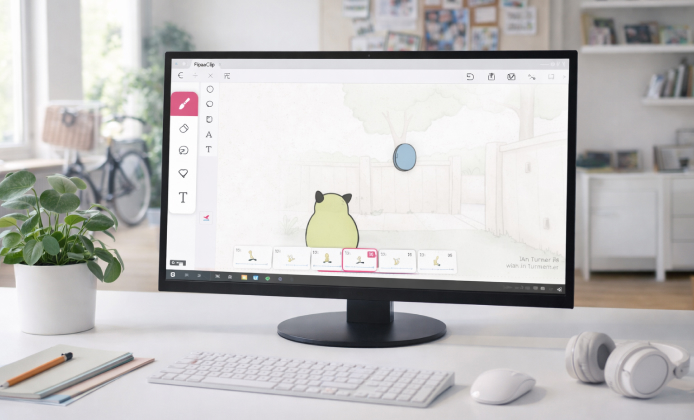
Frame-by-frame animation feels fastest when you can open a project anywhere, especially on shared computers or school devices, so it’s natural to wonder what “web-first” access could look like. As of mid-2025, FlipaClip is distributed through major app stores and is also available on Apple silicon Macs (with some limitations), which means most “browser workflows” are really about smart ways to access the app and your files rather than a full online editor.
In practice, the FlipaClip web version concept usually means one of three things: running the app on a device that’s already portable (tablet/phone/Chromebook), running it on desktop hardware through a compatible environment, or using a browser tool for quick drafts and then finishing inside FlipaClip. :contentReference[oaicite:1]{index=1}
What “Web Version” Really Means for Animators
Even without a dedicated in-browser editor, you can still build a workflow that feels web-like: quick access, consistent files, and smooth exporting. The goal is to minimize friction between “idea” and “first frame.”
- Fast start: keep templates (canvas size, FPS, brush presets) ready.
- File continuity: decide where projects live so you can move between devices.
- Export reliability: standardize formats so you can post or edit elsewhere.
If you treat your animation setup like a “workspace you can reopen,” you’ll spend less time rebuilding settings and more time animating.
Access Options That Feel Closest to a Browser Workflow
FlipaClip is listed as available through Apple’s App Store, Google Play (including Chromebook installation where supported), and it can run on Mac computers with an M-series chip, though it may not be fully optimized. :contentReference[oaicite:2]{index=2}
Chromebook-Style “Open and Go”
On many Chromebooks, installing Android apps is the simplest way to get that “sign in and continue” feeling, especially for students moving between home and school devices.
Apple Silicon Macs for a Desktop Canvas
On supported Apple silicon hardware, you can run the app while using desktop accessories like large displays and external input devices, which can reduce hand fatigue during longer sessions.
Windows Desktops via an App Environment
Many creators choose emulation on Windows when they want a bigger screen, better file management, and more comfortable keyboard shortcuts for adjacent tasks like editing audio and organizing assets.
A Quick Comparison Table
| Approach | Best for | Trade-offs | Tip |
|---|---|---|---|
| Chromebook (Android app) | School + portable continuity | Hardware varies a lot | Keep a low-layer sketch template |
| Apple silicon Mac | Desktop comfort and larger screen | Not fully optimized in all cases | Export often to avoid losing progress |
| Windows via emulator | Big projects and asset management | Setup and performance tuning | Allocate enough RAM/CPU in settings |
| Browser animation tools (alternative) | Quick drafts on any computer | Different tools/feature set | Use them for thumbnails and tests |
How to Build a “Web-Like” Workflow Step-by-Step
- Choose a primary project folder (cloud drive or a dedicated local folder you back up).
- Create a reusable starter project: canvas size, FPS, onion-skin preference, and a color palette.
- Decide how you’ll move assets (PNG backgrounds, reference images, audio clips) between devices.
- Export short checkpoints frequently (a GIF or MP4 preview) so progress is always shareable.
- When you switch devices, open the latest checkpoint first to confirm you’re continuing from the right version.
If you’re comparing feature behavior, it helps to keep a simple test scene (bounce, walk cycle, mouth flap) so you can judge performance and timing consistently.
Version Choices and Safe Download Habits
Before you chase installers, remember that official distribution is typically through recognized stores and official support guidance, so the safest path is to start there and only use alternate sources when you understand the risks. For some users, FlipaClip latest version is the best choice because fixes and compatibility updates tend to reduce crashes and improve export reliability over time. On older devices, FlipaClip old version download might feel tempting when performance is tight, but it’s smarter to test stability first and keep backups in case a legacy build behaves differently with your files. When storage is limited, FlipaClip old version APK can appear in troubleshooting threads, yet you should be careful about provenance and permissions if you’re not using a trusted distribution channel. Some creators stick with FlipaClip old version for consistency in classroom settings, especially when tutorials were recorded on a specific interface layout.
Desktop Use: What to Expect
If your aim is a bigger canvas and easier file handling, FlipaClip PC version workflows usually revolve around running the mobile app experience in a desktop-friendly environment and then exporting to desktop editors for finishing touches.
- Performance: keep canvas sizes reasonable and limit layers during rough animation.
- Input: test mouse vs. pen tablet, and adjust stabilization to match your line style.
- Audio: use a clean naming scheme for sound files so lip-sync stays organized.
About Full Version Claims and What to Do Instead
It’s common to see searches for FlipaClip full version free to download, but the safer approach is to use official channels, evaluate any subscription or in-app options transparently, and avoid third-party packages that can bundle unwanted software.
Browser Alternatives for Quick Sketching
If you truly need to animate inside a browser on any computer, you can draft motion tests with online flipbook tools and then recreate the refined version in FlipaClip for final polish; options like FlipAnim or Brush Ninja show how lightweight browser animation can be. Use browser tools for timing, thumbnails, and rough motion, then switch to FlipaClip for clean linework, layering discipline, and final export.
Troubleshooting Checklist
- Lag while drawing: reduce brush size, lower layer count, and close background apps.
- Choppy playback: preview at a lower resolution, then export at full quality.
- Export issues: try shorter segments and stitch them later in a video editor.
- Lost progress anxiety: export quick previews regularly and keep duplicate copies of project files.
Wrap-Up: Make It Feel Like the Web
The most productive setup is the one you can reopen instantly, whether that’s on a Chromebook, an Apple silicon Mac, or a tuned desktop environment. Focus on consistent storage, frequent preview exports, and a repeatable starter template, and your workflow will feel close to a true “open in browser and animate” experience without sacrificing control.
 A Practical FlipaClip Install Guide on Windows PC
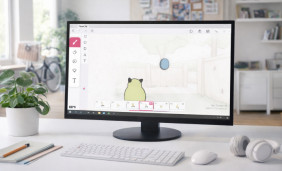 FlipaClip in the Browser Mindset: Practical Ways to Animate
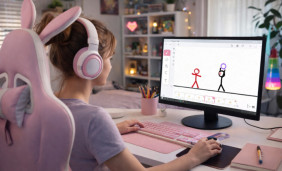 Run FlipaClip on PC: Complete Windows Setup for Animators
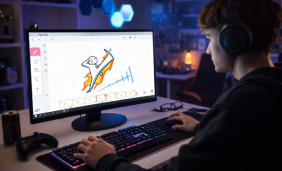 FlipaClip on Tablet Guide: Settings, Workflow, and Drawing Tips
 FlipaClip App Alternatives
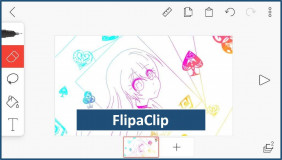 Guide on How to Create a FlipaClip Cartoon