
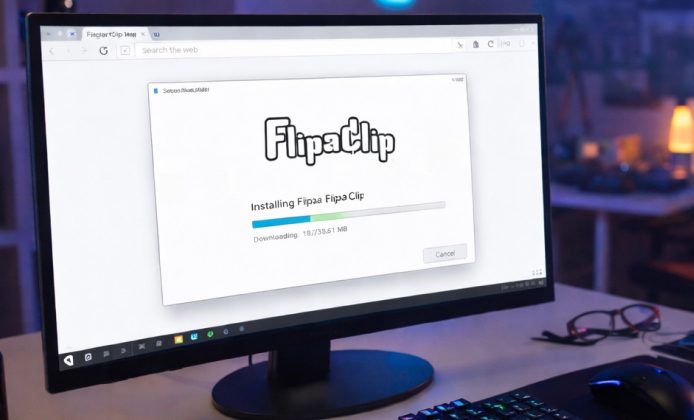
Getting an animation workspace ready should feel simple: download, set up, and start drawing. This install guide walks you through a smooth Windows-friendly setup, plus a few practical checks so your first project opens without hiccups.
Before You Begin: Quick Prep Checklist
- Confirm you have a stable internet connection and enough storage space for app files and exported videos.
- Update your graphics drivers if you notice performance issues in creative apps.
- Decide where you want to save projects (local drive vs. cloud-synced folder).
Tip: If you plan to use a stylus or drawing tablet, plug it in and install its drivers before launching the app, so pressure sensitivity is available right away.
Step-by-Step Installation Workflow
- Download the app only from our fan website to avoid modified builds.
- Run the setup file and keep the default options unless you have a specific reason to change paths.
- Open the app once installation completes and allow any prompted permissions for saving files.
- Sign in (optional) if you want sync features or access to purchases across devices.
- Create a test project to verify playback, audio import, and export settings.
Windows 10 Notes
If you specifically need to install FlipaClip on Windows 10, make sure your system is fully updated and that Microsoft Store services (if used) are functioning correctly, because outdated components can cause download or launch errors.
Choose Your Install Method
There are two common paths: using a store listing for automatic updates, or using a direct download when available. Many users prefer a store because updates arrive with fewer manual steps, while others want a standalone setup for controlled environments.
| Method | Best For | Things to Watch |
|---|---|---|
| Store install | Automatic updates and quick reinstall | Account sign-in, store service availability |
| Direct setup file | Offline-friendly workflows (when supported) | Verify source authenticity, manual updates |
Common Setup Tasks After Install
- Set a dedicated project folder to keep assets organized (audio, sketches, exports).
- Adjust canvas size and frame rate to match your goal (short GIF vs. smooth video).
- Test playback with a few frames to confirm the preview runs smoothly.
Installer Won’t Launch
- Right-click the file and choose “Run as administrator.”
- Temporarily disable overly aggressive security blocks and try again.
- Re-download the setup file in case the download was interrupted.
App Opens but Feels Laggy
- Close heavy background apps and restart your PC.
- Lower canvas resolution for complex scenes and export at higher quality later.
- Update GPU drivers and ensure Windows is on current patches.
Export Fails or Audio Is Missing
- Try exporting a short test clip first to confirm settings.
- Move project files out of cloud-sync folders if syncing causes file locks.
- Check file naming to avoid special characters that break export paths.
Free Options and What They Usually Mean
Some users look for a budget-friendly setup and search for FlipaClip install for free, which typically means using a legitimate free tier or store listing where available rather than unofficial repacks.
PC Installation Expectations
On a desktop or laptop, FlipaClip install on PC is often about creating a stable workflow: comfortable input devices, consistent storage paths, and export presets you can reuse across projects.
If you’re comparing devices, FlipaClip on PC install can feel more efficient for longer sessions thanks to larger screens and easier file management.
Keeping Costs Down Without Cutting Corners
If you want a legitimate budget approach, FlipaClip for free install should focus on official access methods, then you can decide later whether add-ons are worth it for your animation style.
One-Minute Verification Checklist
- Create a new project and draw 5–10 frames.
- Add a simple audio clip (if you use sound).
- Export a short video to confirm your output folder is writable.
- Restart the app to verify projects reopen correctly.
Where to Start After Setup
Once everything runs smoothly, begin with a short looping scene to learn timing, then build up to longer clips with layers and audio. If you ever need to repair or reinstall, keeping your setup file handy as a FlipaClip installer backup can save time.
 A Practical FlipaClip Install Guide on Windows PC
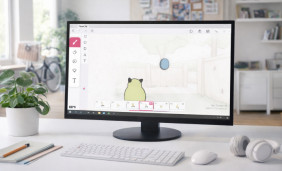 FlipaClip in the Browser Mindset: Practical Ways to Animate
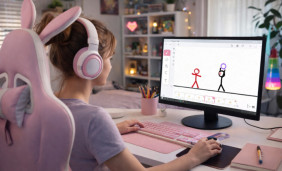 Run FlipaClip on PC: Complete Windows Setup for Animators
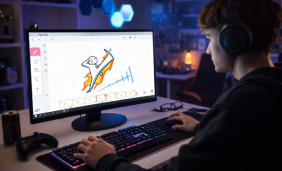 FlipaClip on Tablet Guide: Settings, Workflow, and Drawing Tips
 FlipaClip App Alternatives
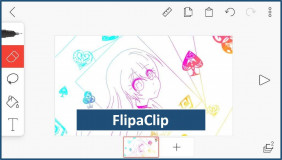 Guide on How to Create a FlipaClip Cartoon